Here is the original. The morning had ground fog and sunlight filtering through the woods.
I took the shot and was so-so about how it looked.
In my mind's eye it was much warmer...
in my mind's eye it was more mystical looking.
But I decided to take it a step further after adding some 'warmth' to it.
This is the uncropped photo.
It satisfied me and I left it be.
Then this morning I wanted something to mess with while I was waiting for the rain to end.
So I opened up the first shot again and dropped it into Topaz Studio. I used 2 layers of Impression, Monet, and another one.
I added the mists that I'd seen with the naked eye and the vision I'd seen while squinting at the photo.
Then I took it another step further and opened up HDR Efex Pro HDR.
I settled on this look. The fog was incredible and moved along the tops of the berry briers, the meadow had an ethereal look to it that did not show up in the photo.
However, it had been a long time since I'd manipulated a photo so much.
I like it.
Programs used. PaintShopProX7, Topaz Studio~free version, Topaz plug ins Simplify, and Efex Pro HDR. In PSPX7 I was able to add the mists with a brush.
So there you have it. One photo with many edits.
Some mornings it is just plain fun to be creative.
Showing posts with label Topaz Simplify. Show all posts
Sunday, May 20, 2018
Tuesday, June 17, 2014
Creating an effect using Topaz.
The combined shot above was part of a hand held 3 exposure shot. But you can use any sort of shot to get a painted or almost illustrated effect using any photo editing program and Topaz plug ins.
So here is the original which really doesn't look very much like anything I'd like to save.
Above is the final edited version.
My advice is if you are thinking of any Topaz products, use their 30 day free trial first. I use Adjust, Simplify, Clean, and Topaz BW Effects 2, along with ReMask.
I'm not sure I need all of their products, but these ones suit me well and work with Elements, CS2, and Corel Paint Shop Pro.
I usually start out with making a duplicate layer of the original and then take that layer into Adjust 5.
I used the setting called Black Rose for this particular shot. Then edited the sliders until I had what I wanted.
I decided a while ago that these particular settings were useful enough for certain kinds of nature shots.
So I used the 'save' button and labeled this for my own use.
Back into the editing program...
Next step was to take it to Simplify.
Now with Simplify there are a lot of options also. I play with the slider until I get a slightly 'flatter' less detailed look but with 'enough' detail to make things look interesting.
You have to experiment with this.
You are editing here for the edges that will be produced in Clean.
I try to keep my layers seperate and labeled always duplicating what I just did. This way I can change the opacity of one of more layers, or even erase something to bring out texture from the layer below.
Next I do something a bit different. Clean seems to work best for this effect with photos that have 200 pixels per inch, not the normal 300. So I change that and then take it into Clean.
When done with this step I study it for a bit and then resize back to the original size.
Sometimes this can be tricky, but worth the effort.
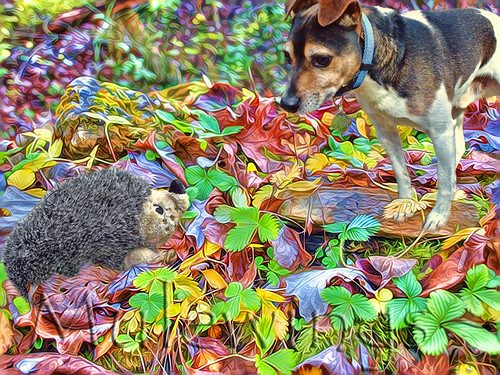
Here is a sample of what I did while photographing and writing one of the latest books I did about Morris and his toy adventures.
I used some very heavy handed editing to make the photo look as if it were an illustration.
Sunday, October 14, 2012
Topaz Products Combining the Plug - Ins
I've become a fan of mixing different plug ins and experimenting with not only those plug ins...of which Topaz is my favorite, but of also blending textures over the photos.
Here is the original photo:
Here I used the original and copied it.
Next I used Topaz Adjust to my own liking.
I copied that layer and made a layer with Topaz Detail.
Lastly I copied the Detail Layer and use Topaz Simplify.
I experimented with the opacity on each layer trying to find a good fit.
So then I entered layer masks...
I liked how the image was shaping up. I took the Simplify layer and ran it through Topaz Clean.
However, I did not like how that came out. So I hit the undo button and stuck with the Simplify layer, which I then masked much like the layer shows in the above sample.
[I change my mind and experiment A LOT when working with photos.] If I don't copy down what I have done, I don't usually recall my work flow at all.
This final image was with the Simplified Layer on top, I used a mask to erase out the portions that I did not want yet to keep the bright colors and the playground equipment nice and clean looking. This was the focal point of my image.
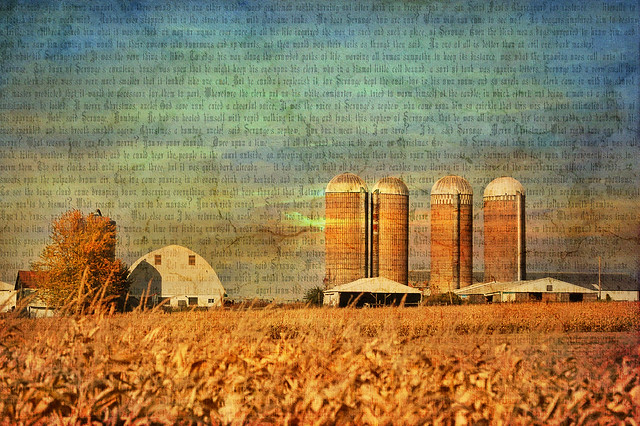
For fun here are a few images that I've used Textures on. I'll be doing a blog on that very soon, as I am trying to figure out how to make great textures myself to use on photos.
And...
Here is the original photo:
Here I used the original and copied it.
Next I used Topaz Adjust to my own liking.
I copied that layer and made a layer with Topaz Detail.
Lastly I copied the Detail Layer and use Topaz Simplify.
I experimented with the opacity on each layer trying to find a good fit.
So then I entered layer masks...
I liked how the image was shaping up. I took the Simplify layer and ran it through Topaz Clean.
However, I did not like how that came out. So I hit the undo button and stuck with the Simplify layer, which I then masked much like the layer shows in the above sample.
[I change my mind and experiment A LOT when working with photos.] If I don't copy down what I have done, I don't usually recall my work flow at all.
This final image was with the Simplified Layer on top, I used a mask to erase out the portions that I did not want yet to keep the bright colors and the playground equipment nice and clean looking. This was the focal point of my image.
For fun here are a few images that I've used Textures on. I'll be doing a blog on that very soon, as I am trying to figure out how to make great textures myself to use on photos.
And...
Labels:
layers,
photography,
sem-tutorial,
Topaz Adjust,
Topaz Detail,
Topaz Simplify
Subscribe to:
Posts (Atom)